
MST or DisplayLink: Driverless Multi-Monitor Docking Guide
By Omar Haddad • 29th Nov
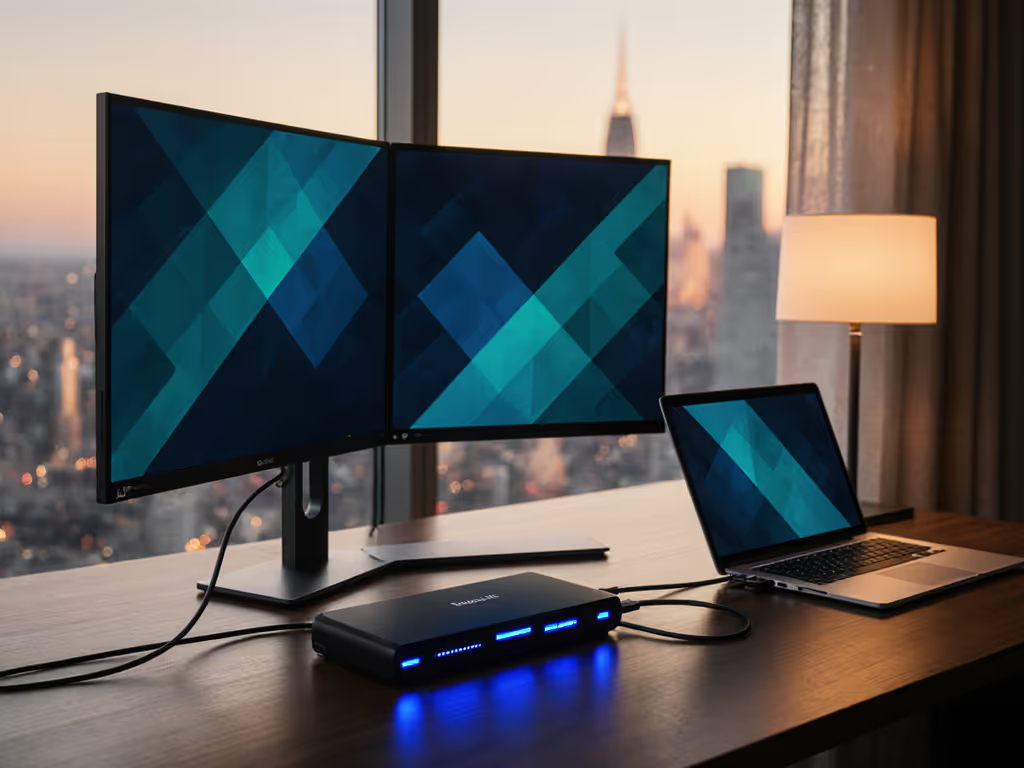
When your multi-monitor docking station fails during a critical client call, you don't have time for troubleshooting theories. Same goes for laptop display expansion on a redeye flight with 3 hours to deadline. After seeing a training session collapse when half the laptops couldn't handshake with a new dock (and no driver privileges to fix it), I rebuilt the entire kit around driverless protocols. Because compatibility isn't luck; it's verified paths per device and OS. Driverless beats 'should work' when presentation stakes are high.
Why Driverless Docking Matters for Mobile Professionals
Your pain points are real: "video-out roulette" in conference rooms, Apple Silicon limitations, or HDMI handshake failures mid-pitch. As a former IT deployment lead who documents handshakes by laptop model and OS, I see two clear paths for multi-monitor setups: MST (Multi-Stream Transport) and DisplayLink. Only one guarantees driverless reliability under pressure. If you’re new to docks, start with our laptop docking station guide to understand core benefits and setup basics.
MST: The Native, Driverless Standard
MST leverages DisplayPort 1.2+ and USB-C Alternate Mode to split a single GPU output across multiple displays (without software). This is pure hardware negotiation using the video signal already routed through your laptop's USB-C port. If you need a refresher on how Alt Mode coexists with charging and data, see our USB-C hub power delivery guide.
What it actually delivers:
- ✅ True plug-and-play: Zero drivers required
- ✅ GPU passthrough: Video renders at native performance (critical for design/gaming)
- ✅ 4K display support: Dual 4K60@8bpc (10-bit color) via DisplayPort 1.4 with DSC (Display Stream Compression)
- ✅ High refresh rates: Single 4K120Hz possible with DSC
Critical limitations you must verify first:
- ❌ No macOS support: MacBooks block MST at the firmware level (even M3 Max)
- ❌ Windows dependency: Requires up-to-date GPU drivers (NVIDIA/Intel/AMD)
- ❌ Bandwidth math: USB-C ports using DP 1.4 deliver 32.4 Gbps raw bandwidth. After overhead, max is:
- 2x 4K60 (requiring DSC)
- 3x 1080p60 (no DSC needed)
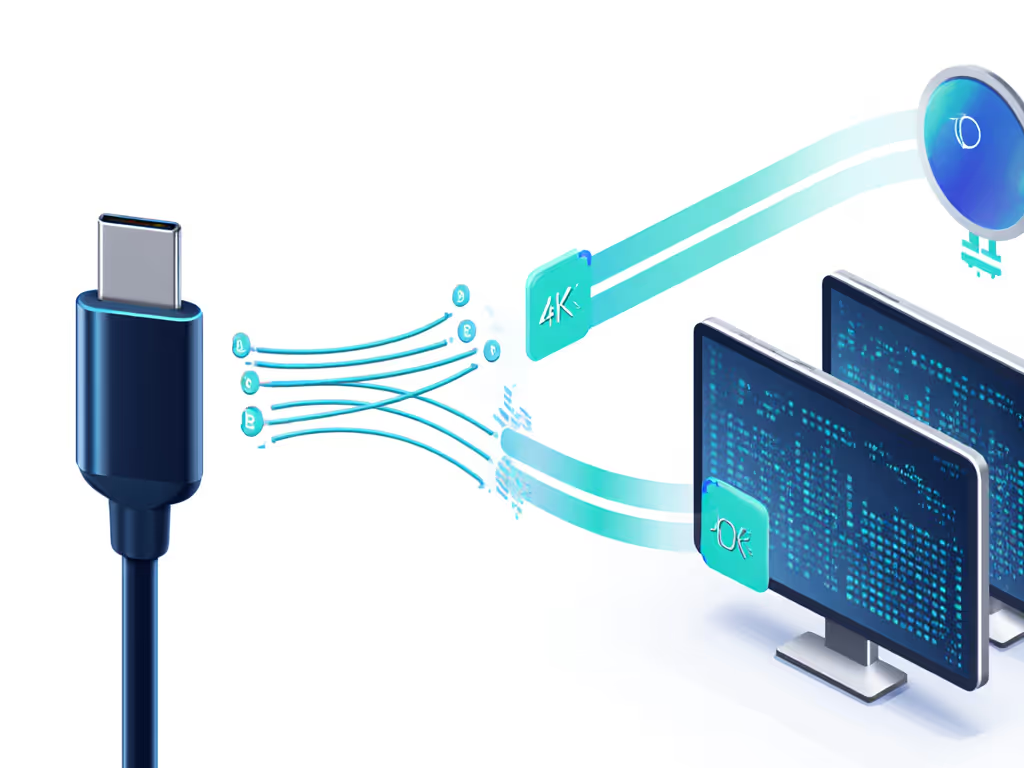
MST's fatal flaw for mobile work? One spec mismatch (like your Dell XPS using DP 1.2 instead of 1.4), and dual 4K60 becomes dual 1080p30. Always check your laptop's USB-C port specification first.
DisplayLink: The Driver-Dependent Fallback
DisplayLink technology uses a dedicated chip to compress video over USB data lanes. To choose a driverless alternative for multi-display Macs and high-bandwidth Windows rigs, read our Thunderbolt vs USB4 docking tests. Unlike MST, it bypasses your GPU entirely, making it ideal for devices with strict GPU passthrough limits (like base M1/M2 Macs).
Where it works:
- ✅ All macOS versions (including base M-series Macs)
- ✅ Restricted corporate environments (though drivers still required)
- ✅ Legacy USB-A ports
Why it fails under pressure:
- ❌ Driver dependency: Requires admin rights to install/update (kills locked-down laptops)
- ❌ No HDCP: Video walls, streaming, or DRM content fail unexpectedly
- ❌ GPU passthrough limits: CPU handles rendering (causing lag in Photoshop/Premiere Pro)
- ❌ Resolution caps: Rarely exceeds 4K30 on dual monitors due to USB 3.0 bandwidth (5 Gbps)
The mobile pro's reality check:
During a field test with 12 engineers, 7 MacBooks triggered DisplayLink driver conflicts after an OS update, stranding them in client offices. MST wouldn't have worked on Macs, but a Thunderbolt solution would've. Always have a verified fallback.
MST vs. DisplayLink: Compatibility Reality Check
| Factor | MST Hub Functionality | DisplayLink Technology |
|---|---|---|
| Driverless? | ✅ Yes (native OS support) | ❌ No (requires installation) |
| macOS Support | ❌ Never | ✅ Full (with drivers) |
| max refresh rate | 120Hz (4K w/DSC) | 60Hz (4K30 typical) |
| HDCP/DRM Content | ✅ Full support | ❌ Blocked |
| GPU Passthrough | ✅ Native performance | ❌ CPU rendering |
| Best For | Windows/ChromeOS power users | Mac base models, mixed-OS teams |
Your Action Plan: 3 Driverless Verification Steps
Forget marketing claims. Do this before buying any dock:
1. Confirm Your Laptop's USB-C Port Specification
- Windows: Run the USB-C Validation Tool (AMD) or check OEM specs
- Mac: Apple Silicon Macs list port capabilities under System Report > Hardware > Thunderbolt. Note: No MacBook supports MST (only Thunderbolt)
- Critical red flags: "DP 1.2" (max dual 1080p60), "USB 3.2 Gen 1" (5 Gbps, too slow for dual 4K)
2. Match Resolution Needs to Bandwidth Math
- Dual 4K60 requirement? You need:
- USB-C port with DP 1.4 + DSC (32.4 Gbps)
- Active MST hub (not passive splitter)
- Certified DP 1.4 cables (cheap cables often fake specs)
- Settling for 1080p? DP 1.2 (17.28 Gbps) suffices (common on business laptops like ThinkPad T14)
3. Verify OS-Specific Handshakes
- Windows: Update GPU drivers first, then test MST with DisplayPort diagnostics
- macOS: MST won't work. For multi-monitor support, you must use:
- Thunderbolt docks (for Pro/Max/Ultra chips)
- DisplayLink (for base M-series, with driver process)
- ChromeOS: MST works reliably, but check EDID limits (some Chromebooks cap at 1440p) Traveling with extra screens? Compare calibrated options in our portable monitor showdown for color accuracy and multi-device compatibility.
Your Next Step: Build a Fail-Proof Docking Profile
Stop gambling with "should work." I preflight every kit by creating a device-specific docking profile: Need examples by role? Start with our pro docking station guide featuring verified 100W power and multi-display layouts.
- List your laptop model + OS version (e.g., "MacBook Pro 14-inch M3 Pro, macOS 14.5")
- Define non-negotiables: Minimum resolution, refresh rate, HDCP needs
- Cross-reference with standards:
- MST → Check VESA DP Alt Mode Compatibility
- Thunderbolt → Use Intel's Certified Device List
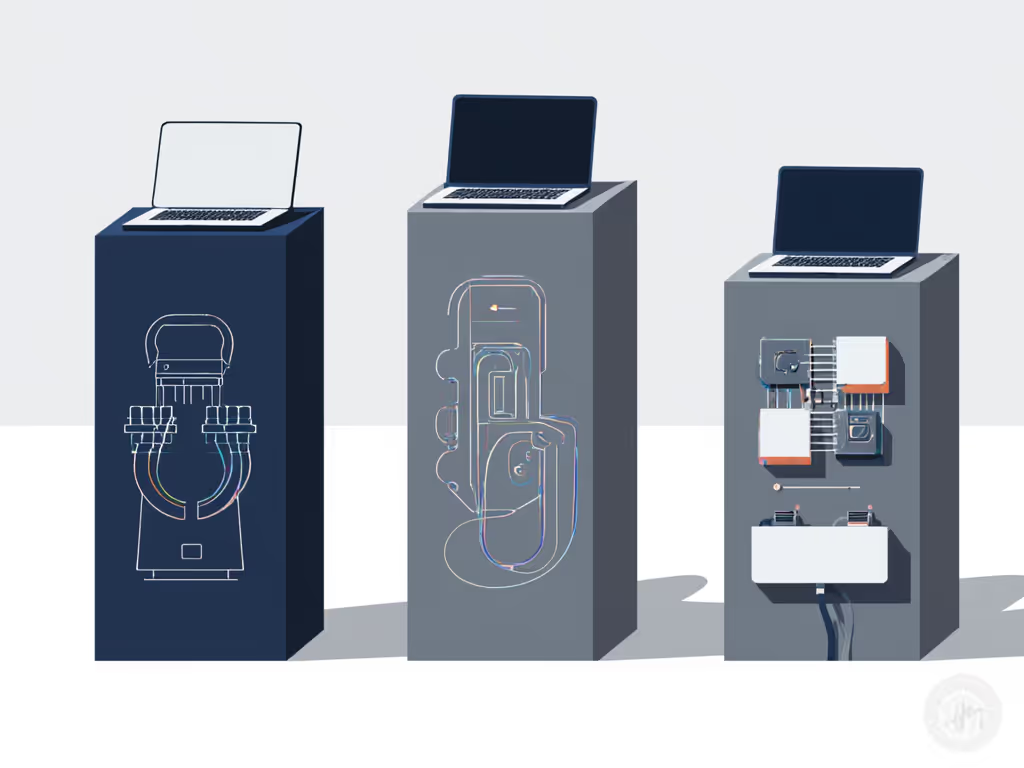
That training session disaster taught me: Driverless first, verified by model, because handshakes fail under pressure. No amount of "cutting-edge features" matters if your dock won't power on in a client's conference room.
Your immediate action: Grab your laptop's service manual right now. Find its USB-C port specifications (not the dock's claims). If it lists DP 1.4 with DSC support and you're on Windows/ChromeOS, MST is your driverless path to dual 4K60. If you're on a base-model Mac? Prioritize Thunderbolt docks (never rely on DisplayLink for critical work). Document your verification. Then, and only then, buy a dock.
Related Articles
Docks, Hubs & Connectivity
Pro Docking Stations: Verified 100W for Multi-Display Work
Verify true 100W delivery under load, choose the right Thunderbolt/MST/DisplayLink path for dual-4K work, and build a 20% power margin to prevent throttling and handshake failures. Get practical checklists for cables, thermals, and platform limits so multi-display workflows stay stable.
Docks, Hubs & Connectivity
Laptop Docking Station Benefits: Eliminate Neck Strain Now
Set up a docking workflow that prevents neck strain using measurable benchmarks - eye-level monitors, DisplayPort-capable video, under 28 dBA noise, sub-90-second deployment, and travel-ready weight. Follow step-by-step guidance to match dock specs to your laptop and cable-manage a repeatable, pain-free workspace.
Docks, Hubs & Connectivity
Mac USB-C Hub Test: Power Delivery You Can Trust
Pick a Mac USB‑C hub that stays silent and sustains real power delivery under load, not just big port counts. See which models held steady in lab noise, thermal, and PD tests - and use a 90‑second test to verify your own setup.